Who can use this: Any team member
Available on: Gong Engage
Ideal for: Sales rep, Sales manager
The new Engage task experience keeps the outreach activity you’re working on available while you navigate Gong. When you start an activity, such as completing a to-do, composing an email, or making a call, it opens alongside the rest of your Gong workspace.
What is changing
Previously, opening an Engage task placed it over the page you were working on. You could still see the page behind it, but you couldn’t interact with it without leaving the task.
With the updated experience, your activity opens alongside the rest of Gong. You can continue navigating and working in Gong while keeping the activity available.

This means you can:
Keep working while you research: Navigate to a person, account, deal, call, or other Gong page while keeping your current activity open.
Move between activities: Minimize an activity, work on something else, then return to it without losing your place.
Handle interruptions: Take an incoming call without closing the activity you were already working on.
Switch activities smoothly: Move between supported activities while your open work stays available.
Use Gong assistant while completing outreach
Gong Assistant is available alongside your outreach activity, so you can ask questions about a contact or account without leaving what you're working on. Assistant provides answers based on relevant information in Gong, which you can use while preparing an email, making a call, or completing another task.
Keep multiple activities open
You can keep multiple activities available at the same time. When you minimize an activity, it appears in the minimized activity bar. Open it again when you’re ready to continue.
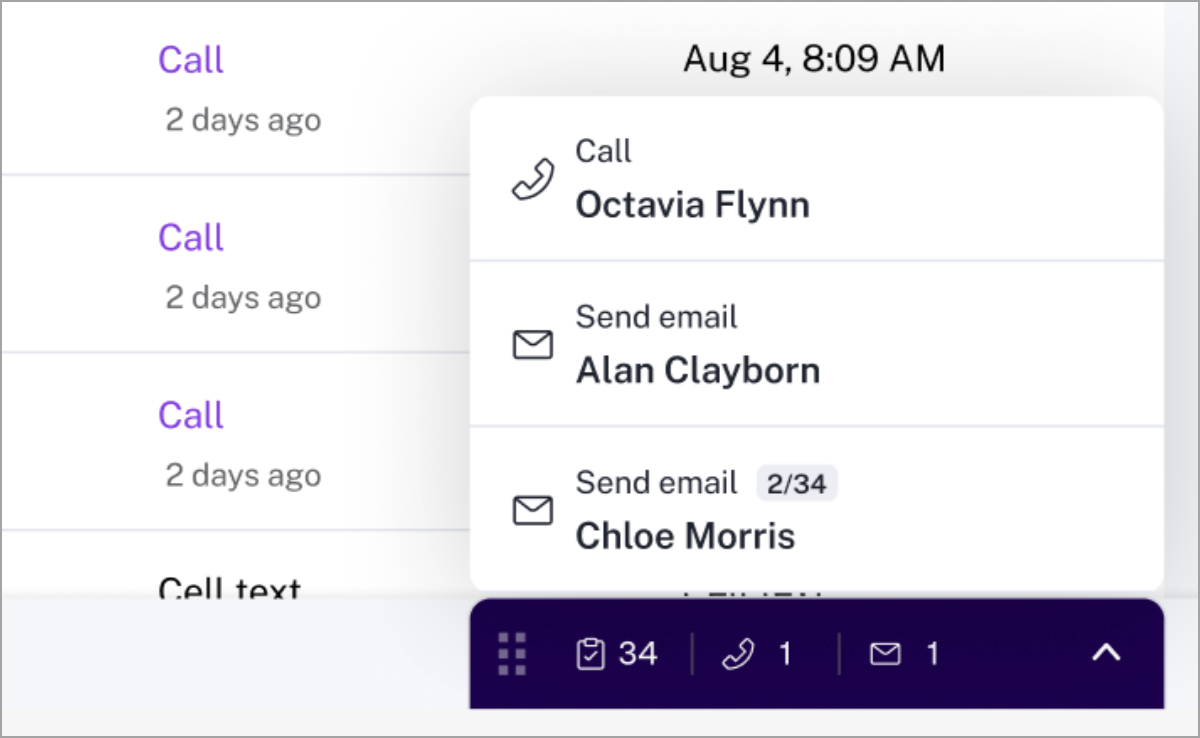
The minimized bar shows the activity type and name so you can identify what you have open. The bar stays available as you navigate Gong and can be dragged to another position if it blocks something you need to access.
Open activities are organized into named tabs, making it easier to identify and switch between them. Multiple to-do queues are grouped together, so you can keep several queues open without cluttering your workspace. You can also drag the minimized tab group to another position if it blocks something you need to access.
Your open activities are also restored if you refresh Gong.
Grouped to-dos
When you work through several to-dos, they are grouped into a queue that shows your position as you move through them.
For example, 1/5 means you’re working on the first of five to-dos in that queue. If you open a to-do from your current To-dos view, the queue is based on the to-dos available in that view. If you select specific to-dos before starting, the queue contains only the to-dos you selected.
Different queues can stay open at the same time, with each one showing its activity name and queue position.
Handle an incoming call without losing your work
If an incoming call opens while you’re working on another activity, your existing work remains available while you handle the call. When the call ends, return to the previous activity and continue where you left off.
When you minimize an active call, a live-call indicator appears on the minimized tab, so you can see that the call is still in progress while you work elsewhere in Gong.

Other changes to the outreach experience
Expand or minimize your activity
Expand an activity to use the full browser window, or minimize it to continue working elsewhere in Gong. Both options are available across all supported activity types. The layout also adjusts to different screen sizes.
See more information about your to-dos
When a to-do comes from a flow, the flow name and step appear with the activity, so you can see where the to-do originated. The due date is also displayed.

Insert email content from one place
Email composer groups templates, prompts, and blocks under a single Insert Content button, replacing the separate controls previously used for each content type.

Access context while completing an activity
Supported activities include a context panel with relevant information alongside the activity you’re completing. The context panel is open by default. If you collapse it, Gong remembers your preference the next time you open an activity.
Depending on the activity, the context panel can include contact and deal information, call scripts, email information, and writing tools.
What stays the same
The updated experience changes the workspace around your outreach activities, not the activities themselves. Continue using experiences such as Email composer and the Gong dialer as you do today. Existing permissions for calls, emails, and other activities still apply.
The Gong browser extension is not part of this change.