Who can use this: Any team member
Available on: Gong Engage
Ideal for: Sales rep, Sales manager
Connect Calendly to Gong so that Gong records the meetings people book through your Calendly event types. Setup has three stages:
Connect Calendly to Gong.
Check that your event types send calendar invitations.
If your company uses the Gong consent page, add your consent page link to your event types.
Before you begin
You need a Calendly account (any plan). For Gong to record a meeting scheduled through Calendly, the meeting must meet these conditions:
You're set up to be recorded by Gong.
The meeting appears in your calendar.
The meeting event includes a web conferencing link. If you don't have one, generate a link with Calendly's built-in integration for a service such as Google Meet, Zoom, GoToMeeting, or Microsoft Teams.
Your Calendly event types are set to Calendar invitations. Step 2 shows you how to check.
Step 1: Connect Calendly to Gong
The Calendly browser extension links your Calendly account to Gong.
To connect Calendly to Gong:
Download a Calendly browser extension for Chrome, Firefox, or Edge.
From the extension, click Integrations.
Turn on Gong.
Allow Gong permissions to connect with Calendly.
Step 2: Check your Calendly settings
Gong doesn't record a meeting when its event type sends Email Confirmations instead of Calendar invitations. Check each event type you've set up and switch any that need it.
To check an event type's settings:
In Calendly, click Scheduling, and select an event type.
In the event editor, go to Notifications and workflows.
Open the menu next to Calendar invitation/Email confirmation, and click Edit.
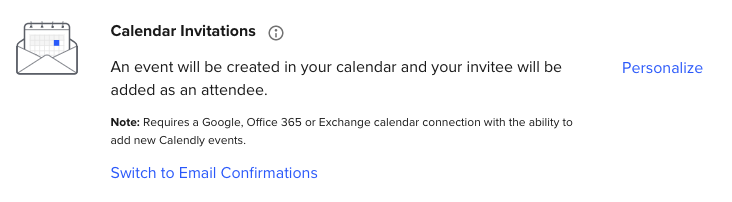
(Only if Email Confirmations is selected) Click Switch to Calendar Invitations.
Click Save & Close.
Repeat these steps for each event type you've set up.
Step 3: Add your consent page link
Add your personal consent page link to your Calendly event types to make sure participants see the page before they join the meeting.
Note:
This stage applies only if your company turned on the Gong consent page. The audio prompt needs no additional setup. Learn more about recording consent.
To add your consent page link to a Calendly event type:
In Gong, copy your personal consent page link from your recording settings.
In Calendly, click Event Types.
On one of your event types, click the event settings
 icon, and then click Edit.
Click What event is this?, the first item.
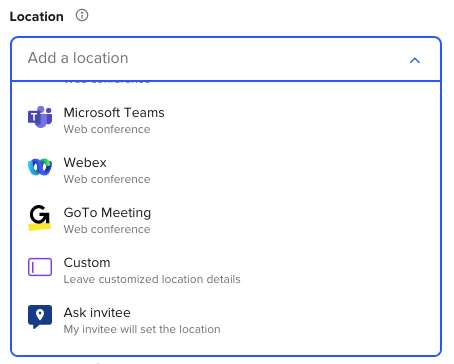
Click the Location dropdown, and select Custom.
Paste your personal consent page link into the Edit Location dialog, and click Update.
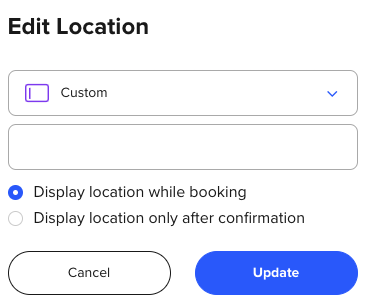
Click Save & Close.
Repeat these steps for each event type you've set up.