Business problem
Pipeline leaks in the gaps between people and systems: Lost deals are forgotten, new leads wait for someone to research them, and what a BDR learned doesn't reach the AE before the first call.
Keep pipeline moving with agents
Build agents that run on their own six months after a deal closes lost, when an opportunity is created, or when a new lead comes in. They send the deal owner a win-back plan, the AE a handoff brief, or the lead owner a note on whether the lead was enriched.
Quick start
1Pick your starting point. Use a Gong template, or start from scratch.
2Choose when it runs. Pick the moment that starts it, like a deal closing or a renewal coming up.
3Tell it what to do. Write the instructions, and choose who gets the result.
4Turn it on. From then on, it does the work every time.
Know before you build
Required permissions: Manage company agents, skills and automations
Credits: The Generate with AI and Enrich contacts steps use Gong credits each time they run. The trigger and the email don't.
For step-by-step instructions, see Create an automated agent.
Pipeline agents
Each agent closes a different gap in your pipeline. Select one below to see what it does, when it runs, and how to set it up.
Start with a Gong template
Gong prepared these templates, and you can adjust each one to match your settings.
Lost deal win-back
Send the deal owner a re-engagement plan for a deal that closed lost.
Send the deal owner a re-engagement plan for a deal that closed lost.
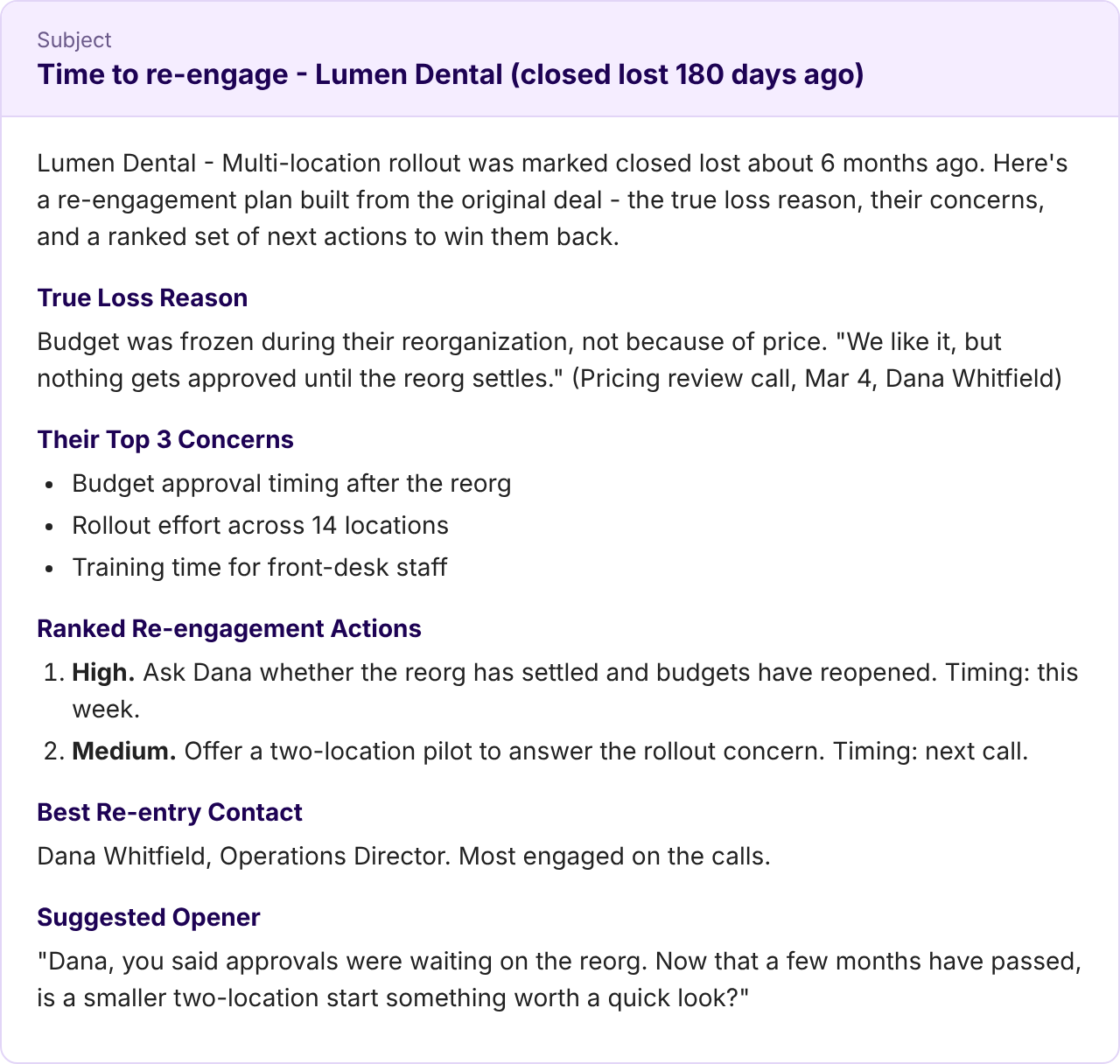
Six months after a deal is marked closed lost, the agent reads the original deal's calls and emails, then sends the deal owner a re-engagement plan: The true loss reason, the top three concerns with quotes, ranked next actions, the best contact to approach, and a short opener to send. If it finds no calls for the account, it says so.

Trigger: 180 days after an opportunity's close date, for deals that are closed and not won
Notify: The opportunity owner, by email
Example output: The email the agent sends
Template: Go to New agent and select the Retention category. Find the Closed-lost re-engagement agent template.
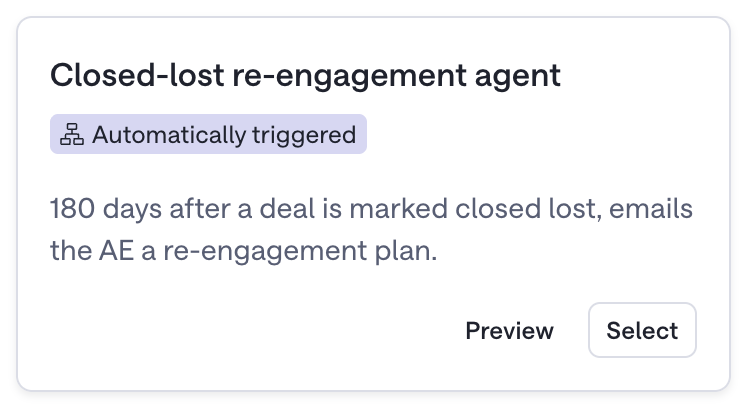
After you select the template, check the following:
Stage name: The template expects a stage called "Closed Lost". On HubSpot and Dynamics, if your stage has another name, the filter comes out empty and the agent runs for every deal 180 days after it closes.
Days: If you change 180, also change it in the email subject, the email message and the instructions.
Which deals: The agent runs on the 180th day after a deal closes, and only on that day. A deal that closed more than 180 days before you turn the agent on doesn't start it.
Warm BDR-to-AE handoff
Brief the AE on the account's calls and emails when an opportunity is created.
Brief the AE on the account's calls and emails when an opportunity is created.
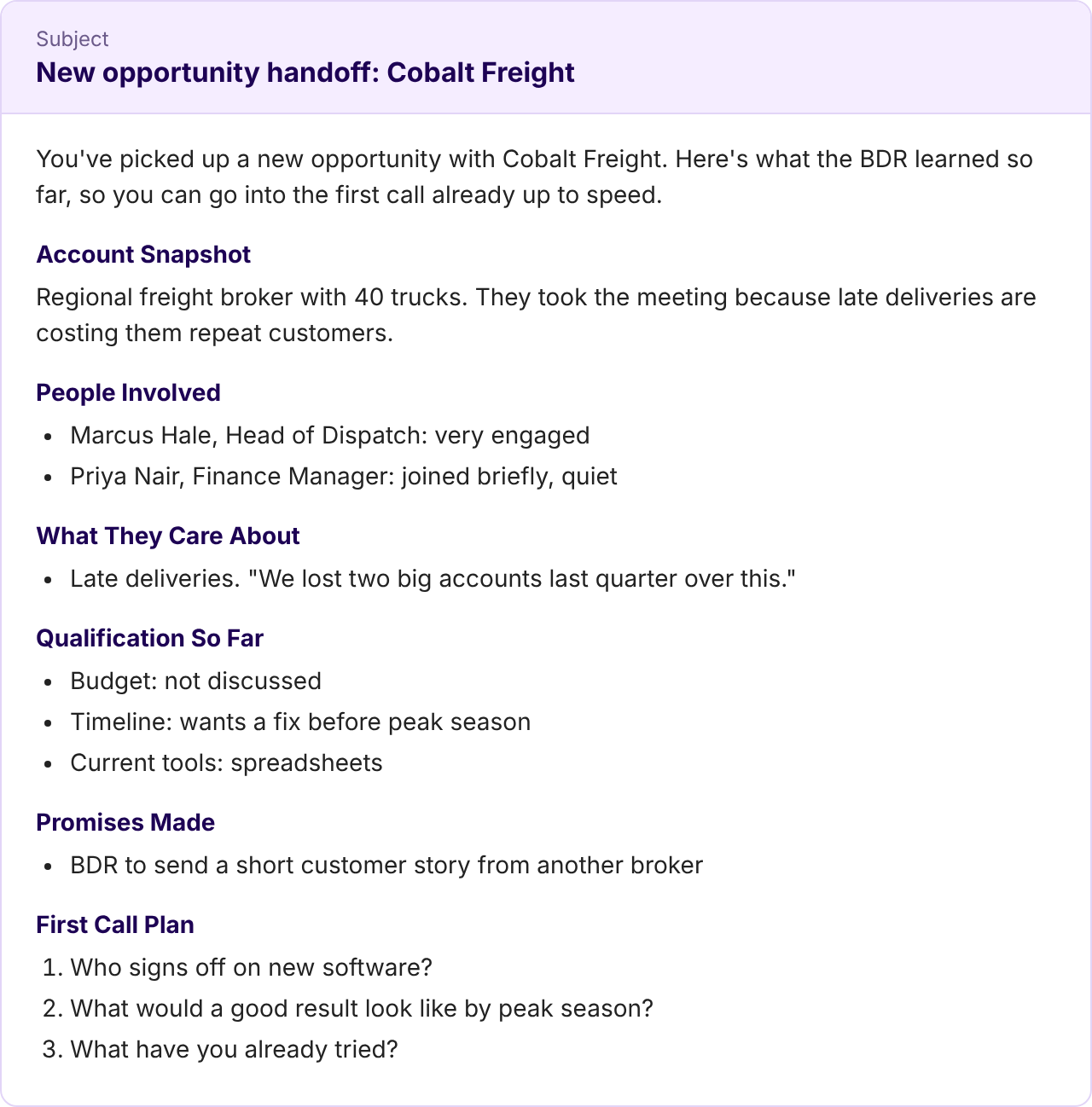
When a new opportunity is created, the agent reads the account's earlier calls and emails, then sends the AE a handoff brief: Who the BDR spoke with, what they care about, what is qualified so far, what the BDR promised, and three questions for the first call. If it finds no calls or emails, it says so.
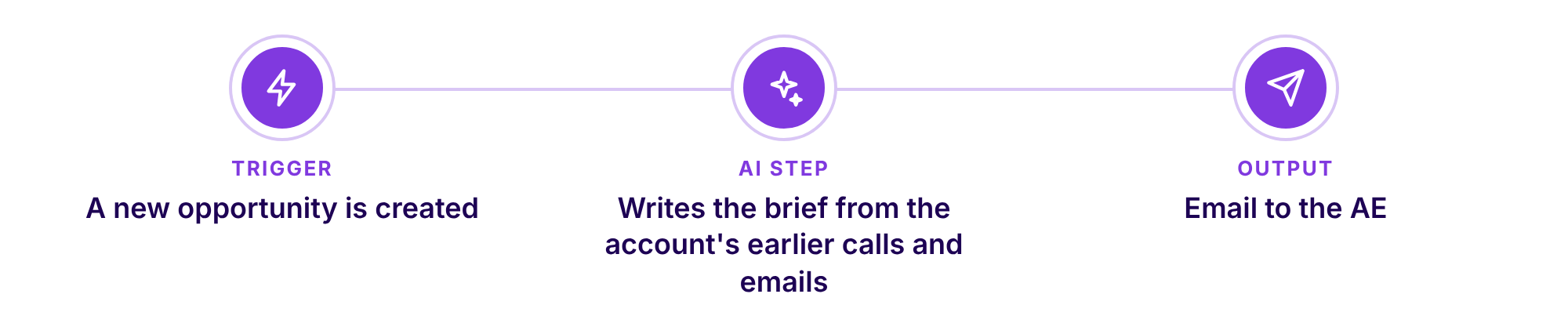
Trigger: An opportunity is created
Notify: The AE, by email
Example output: The email the agent sends
Template: Go to New agent and select the Pipeline category. Find the BDR to AE handoff agent template.
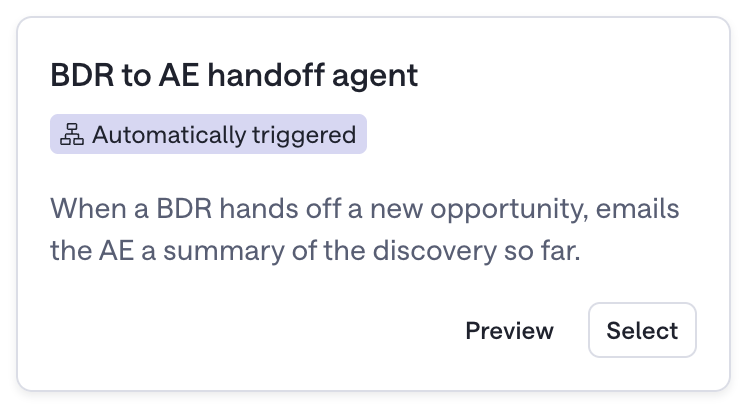
After you select the template, set:
Recipients: The email step has no recipient, and the agent can't be saved until you add one. Select the AE in Send an internal email.
Optional filters: The trigger has no filter, so without one, the agent briefs the AE on every new opportunity. Add one that matches how your CRM marks BDR-sourced opportunities, for example Lead Source is Outbound.
Build it yourself
You can set these agents up yourself using the triggers and instructions provided.
Speed-to-lead enrichment
Enrich a new lead and notify the lead owner.
Enrich a new lead and notify the lead owner.
When a new lead is created, the agent looks the person up in Gong's Enrich data, fills in the Enrich fields on the lead, and emails the lead owner that it's ready. The email says whether the match worked. The email can't include the email address or phone number the agent found.

Trigger: A lead is created, optionally only when Email is empty. On HubSpot, use Contact.
Notify: The lead owner, by email
Example output: The email the agent sends
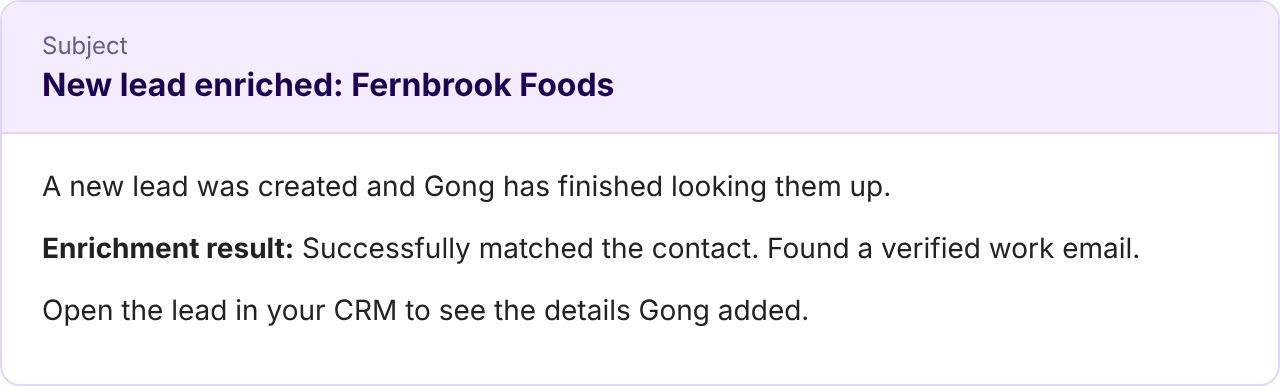
Set up the agent:
Enrich: A Tech admin has to activate Enrich first.
Data to enrich: In the Enrich contacts step, select Retrieve email addresses and Retrieve phone numbers. Both are off by default.
Timing: The agent runs a few minutes after the lead is created, not instantly.
Tip:
Looking for agents for other teams? The Custom Agents prompt library in Gong Academy has more agents, with instructions you can paste.