Business problem
Deals go quiet without anyone noticing, stage changes go unchecked against what the buyer said, and objections raised on a call don't get a follow-up before the next conversation.
Catch deals that need attention with agents
Build agents that step in on their own when a deal goes quiet, changes stage, or a call raises an objection. The email tells the owner or their manager why the deal appears stalled, whether its stage matches what the buyer said, or which objections and decision questions are still open.
Quick start
1Pick your starting point. Use a Gong template, or start from scratch.
2Choose when it runs. Pick the moment that starts it, like a deal closing or a renewal coming up.
3Tell it what to do. Write the instructions, and choose who gets the result.
4Turn it on. From then on, it does the work every time.
Know before you build
Required permissions: Manage company agents, skills and automations. To create a tracker for the objection agents, you also need Manage AI Tracker settings.
Credits: The Generate with AI step uses Gong credits each time it runs, and so does the AI tracker trigger that the objection agents use. The email doesn't.
For step-by-step instructions, see Create an automated agent.
Deal agents
Each agent covers a different point in a deal. Open one to see what it does, when it runs, and how to set it up. Gong prepared a template for each, and you can adjust it to match your settings.
Stalled deal nudge
Email the deal owner and their manager when an open deal has no activity for 60 days.
Email the deal owner and their manager when an open deal has no activity for 60 days.
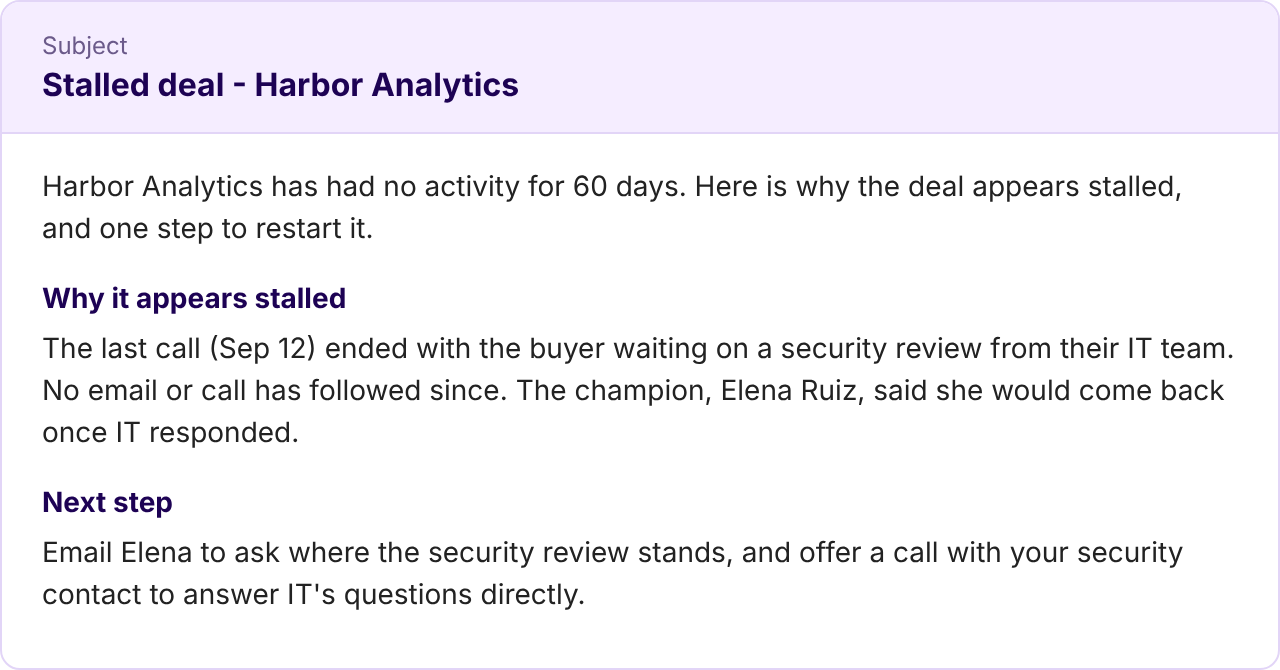
When an open deal's last activity was 60 days ago, the agent summarizes why the deal appears stalled, based on the last call or email, and suggests one next step. If it finds no calls, it says so.
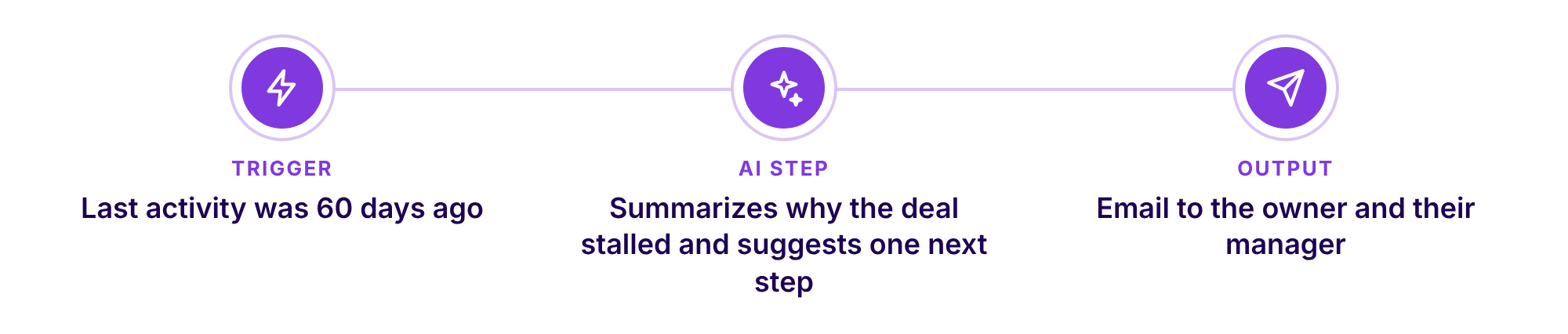
Trigger: An opportunity's Last Activity was 60 days ago, for deals that are not closed
Notify: The opportunity owner and their manager, by email
Example output: The email the agent sends
Template: Go to New agent and select the Pipeline category. Find the Stalled deal nudge agent template.
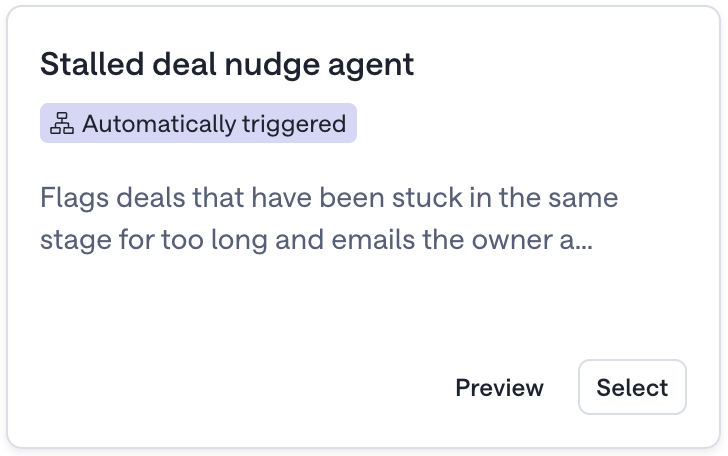
After you select the template, check the following:
Date field: On Salesforce, the template uses Last Activity. On HubSpot and Dynamics, the field isn't filled in, so select the date field that records your last activity.
Which deals: The agent runs on the 60th day only. A deal that has already been quiet for more than 60 days when you turn the agent on doesn't start it.
Last activity: The date comes from your CRM, so it changes only when activity is logged there.
Open deals: The template filters to deals where Closed is false. Check that the filter is filled in, because on HubSpot and Dynamics it can come through empty.
Email wording: The email says the deal "has been in its current stage for over 60 days with no movement". The agent checks last activity, not time in stage, so edit that sentence before you turn the agent on.
Recipients: The template sends to the owner and the owner's manager. If the owner has no manager in Gong, the run fails.
Deal progress check
Compare a deal's stage with what the buyer said, and flag gaps for the manager.
Compare a deal's stage with what the buyer said, and flag gaps for the manager.
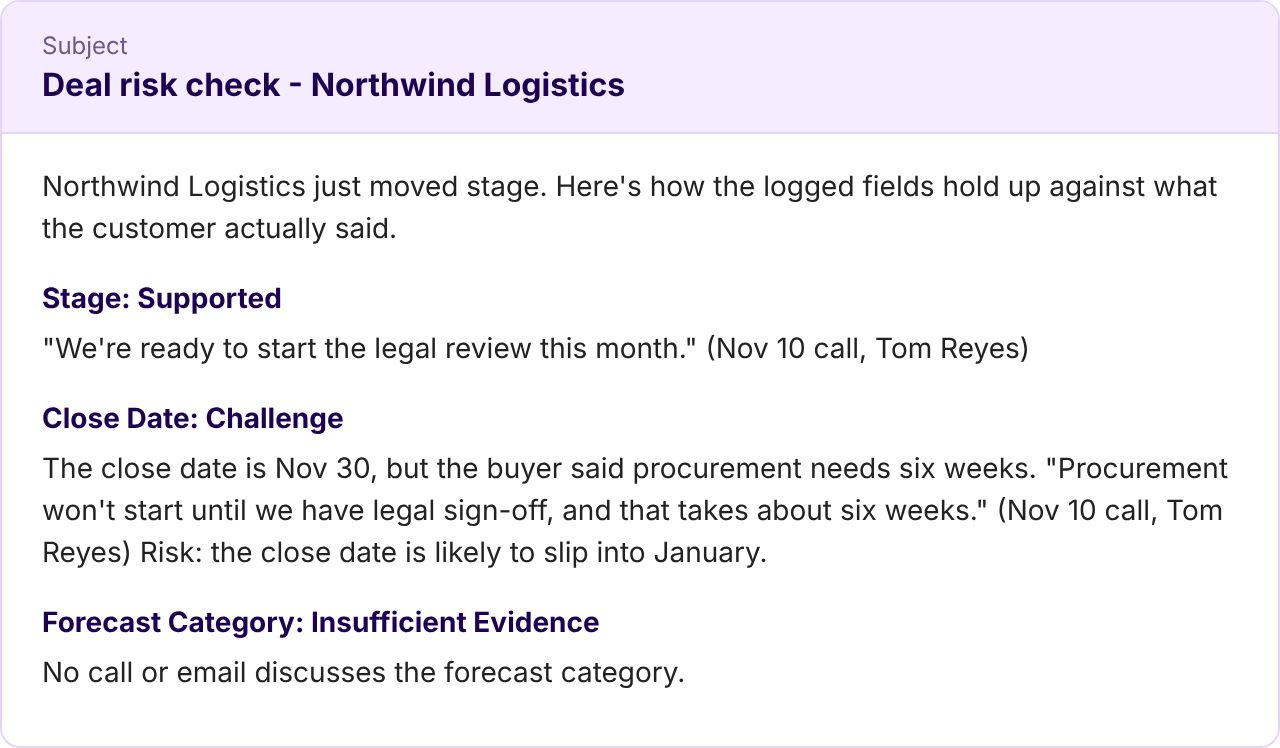
When an open deal's stage is updated, the agent compares the deal's Stage, Close Date and Forecast Category with what the buyer said on the calls and emails for the opportunity. For each field it gives a verdict (Supported, Challenge or Insufficient Evidence), with a dated quote and any risk it points to. If it finds no calls, it says so and stops.
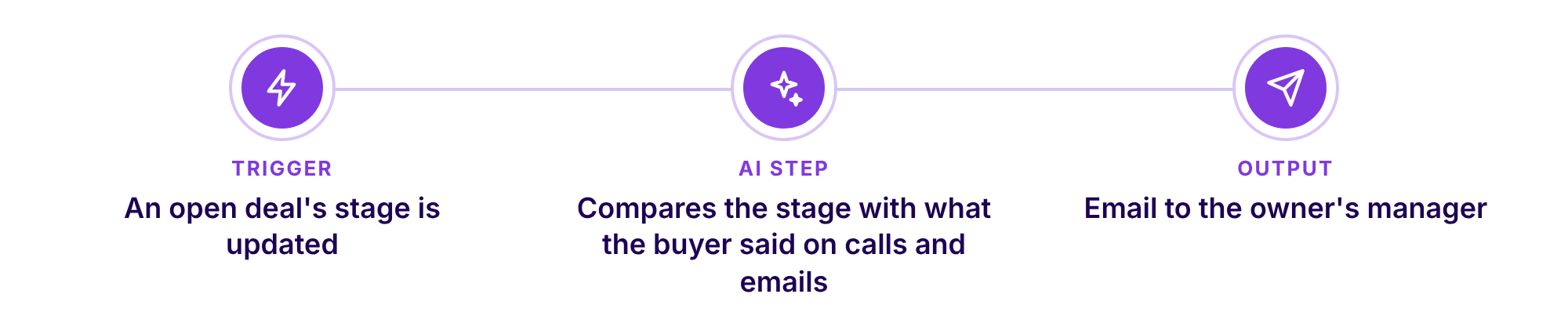
Trigger: The Stage of an open opportunity is updated
Notify: The opportunity owner's manager, by email
Example output: The email the agent sends
Template: Go to New agent and select the Pipeline category. Find the Deal field verifier agent template.
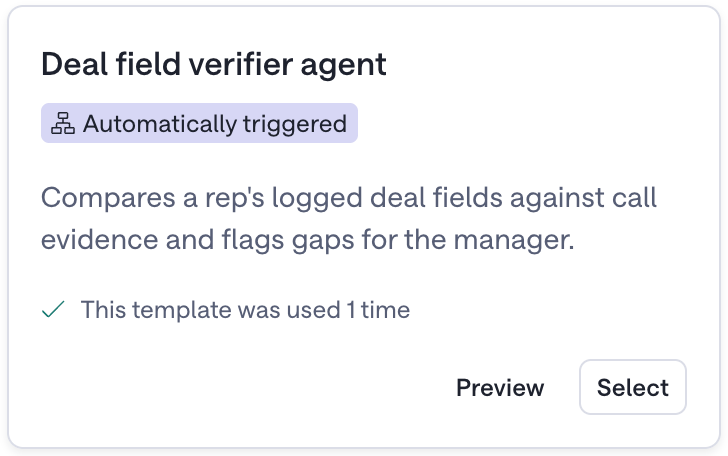
After you select the template, check the following:
When it runs: The agent runs when the Stage changes. Other updates to the opportunity don't start it.
What it reads: The agent is handed the stage before and after, and any other field that changed in the same update. Close Date and Forecast Category reach it only if they changed in that update. It also looks at the calls and emails that your Data access setting can reach, and it decides what to retrieve, so the verdict isn't a field-by-field match.
Open deals: The template filters to deals where Closed is false. Check that the filter is filled in, because on HubSpot and Dynamics it can come through empty.
Recipients: The template sends to the owner's manager. If the owner has no manager in Gong, the run fails.
(Optional) Save the verdict to the CRM: The template doesn't write to the CRM. To record the verdict on the opportunity, add an Update field step. This step doesn't use credits.
(Optional) Your own definitions: The instructions ask the agent to use your stage definitions, forecast categories and qualification criteria when provided. Add them as files in the Generate with AI step. You can add up to 10 files, 20MB each, in PDF, DOCX, TXT, MD, RTF or CSV format.
Objection follow-up plan
Send the account owner a note when a buyer raises an objection or explains how they will decide.
Send the account owner a note when a buyer raises an objection or explains how they will decide.
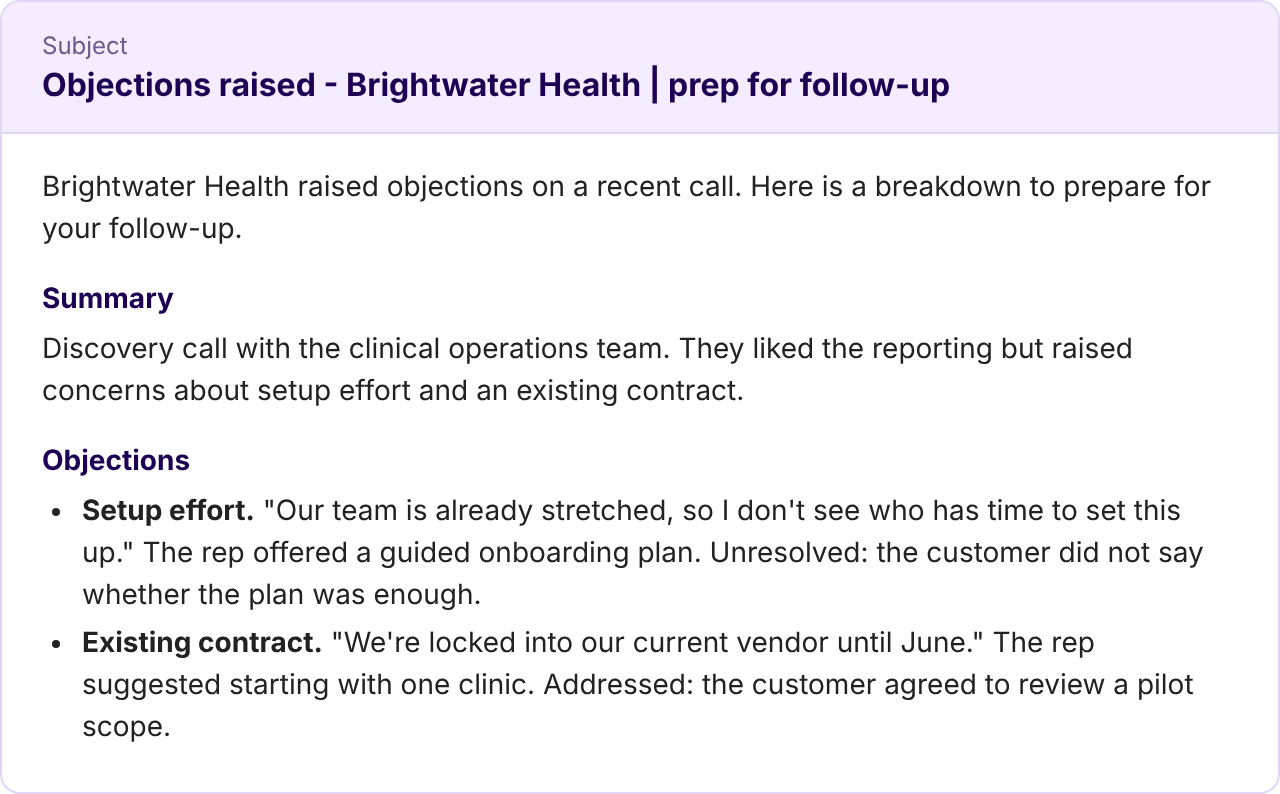
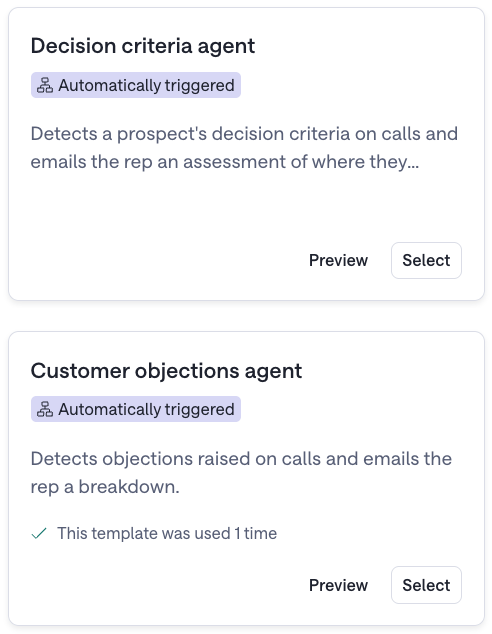
Two templates cover this use case. The Customer objections agent sends a summary of the call and a list of the objections raised, each with the buyer's quote, how the rep responded, and whether the response settled it. The Decision criteria agent lists each criterion the buyer described, with who said it, its priority, how you stack up (Strong, Partial, Gap or Unknown) and a next action, plus the questions still open about the decision.
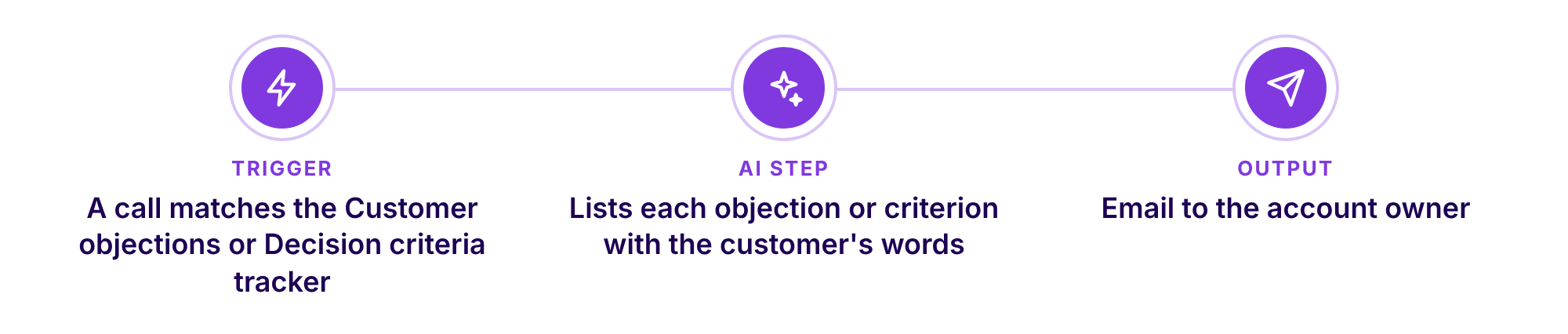
Trigger: An AI tracker detects its concept in a call, either Customer objections or Decision criteria
Notify: The account owner, by email
Example output: The email the agent sends
Template: Go to New agent and select the Deals category. Find the Customer objections agent template, the Decision criteria agent template, or both. Each agent has one tracker, so build one agent for each template.
After you select the template, check the following:
Tracker: Each template starts from the Gong AI tracker with the same name. If your company doesn't have that tracker, the Trigger field is empty and you have to select a tracker before you can save.
Which calls: The agent adds no call filter. The tracker's own filters determine which calls start it, and you change them in the tracker, not in the trigger. Internal calls are left out only if the tracker's filters leave them out.
What it reads: Each agent uses only the call that matched. It doesn't read the account's earlier calls.
Recipient: The email goes to the account owner, who may not be the rep on the call. Both sets of instructions are written for the rep, so change the recipient or the wording if the owner isn't the rep.
(Optional) Your proven responses: Add them as files in the Generate with AI step. You can add up to 10 files, 20MB each, in PDF, DOCX, TXT, MD, RTF or CSV format.
Tip:
Looking for agents for other teams? The Custom Agents prompt library in Gong Academy has more agents, with instructions you can paste.